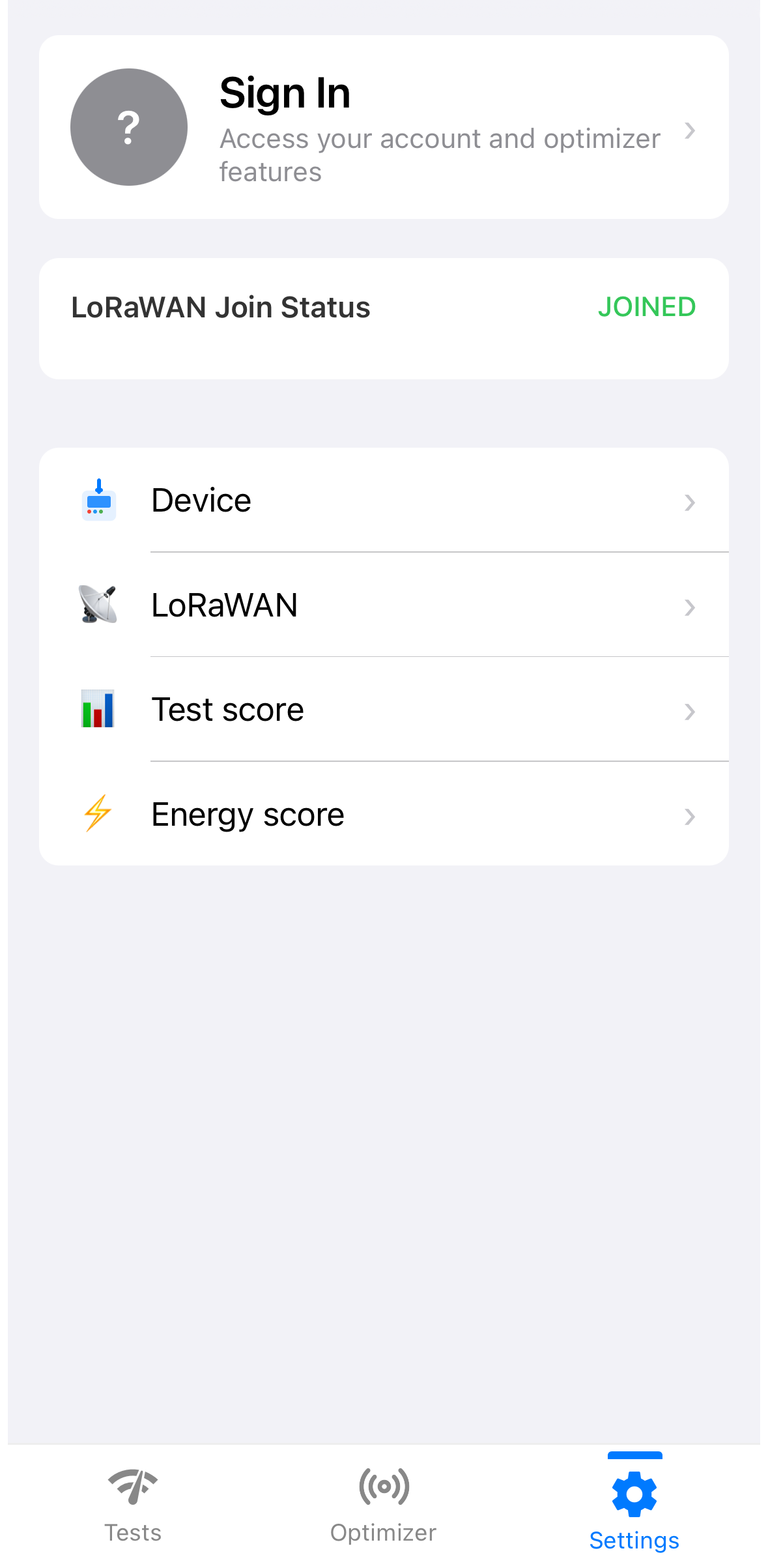
Request to join the network
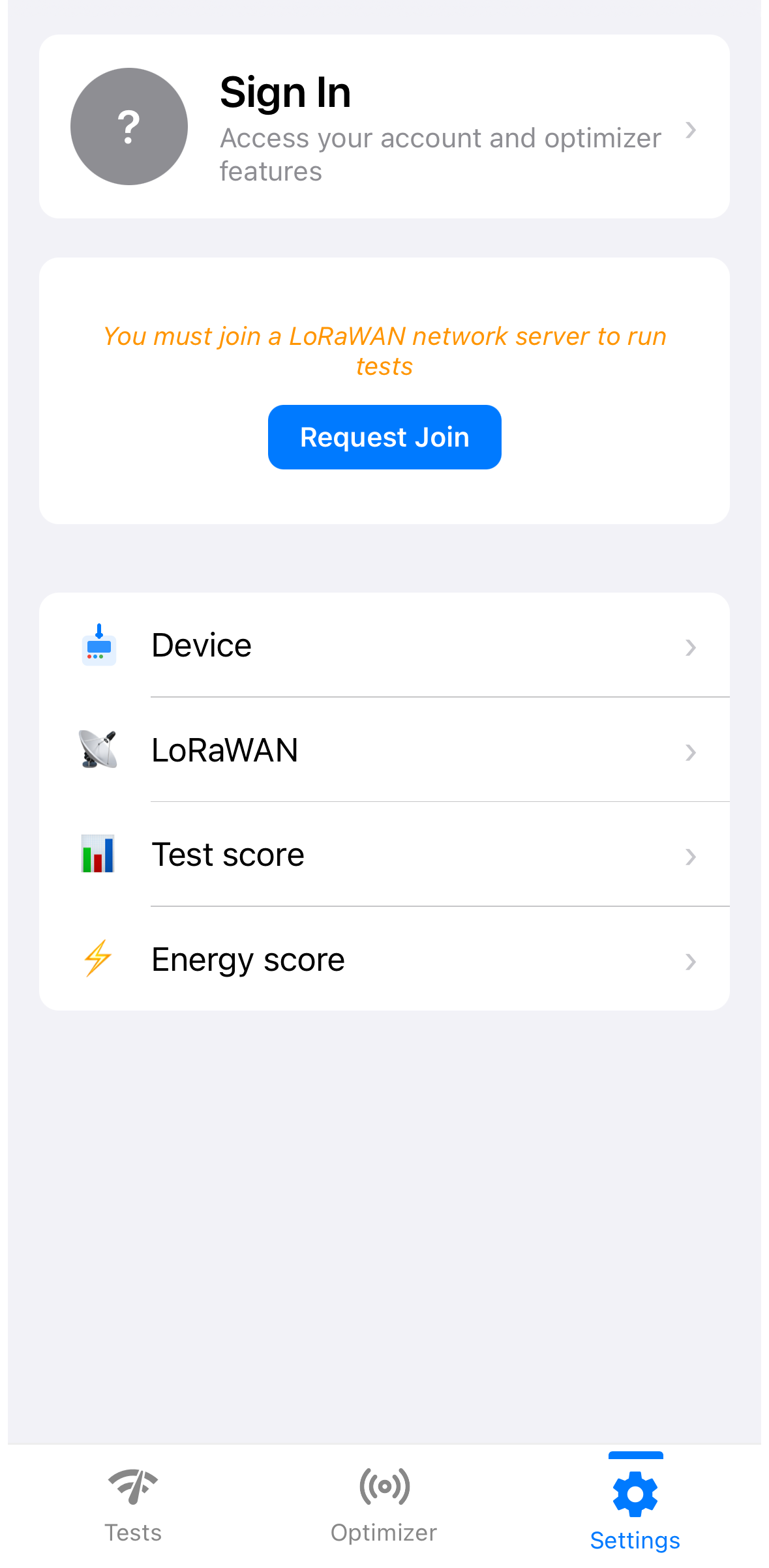
Open Settings in the Loptimizer app and tap Request Join. Loptimizer must be registered on your LoRaWAN network server before you can run tests.
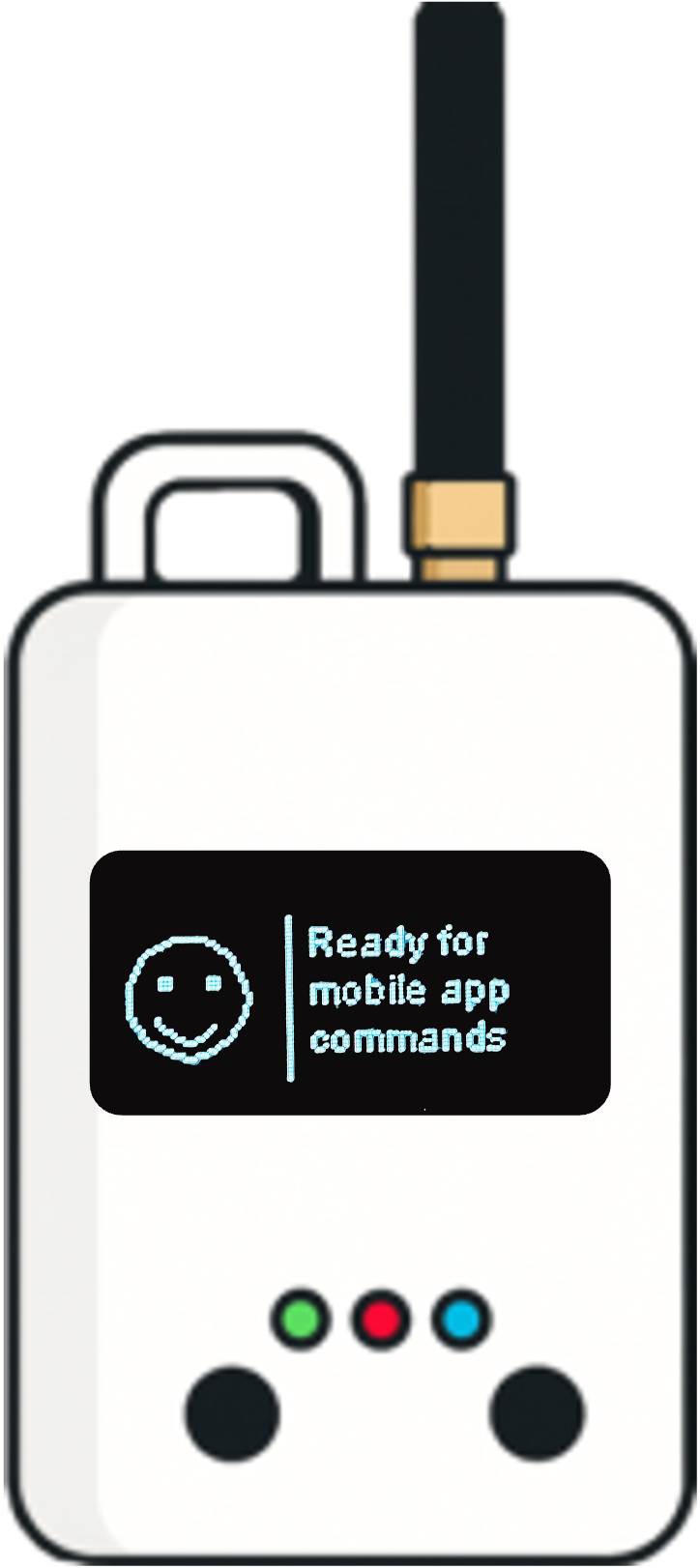
Before you start using Loptimizer for LoRaWAN tests, register your Pocket Tester on your LoRaWAN network server and complete the join procedure. Follow these four steps in the Loptimizer app.
Open Settings in the Loptimizer app and tap Request Join. Loptimizer must be registered on your LoRaWAN network server before you can run tests.
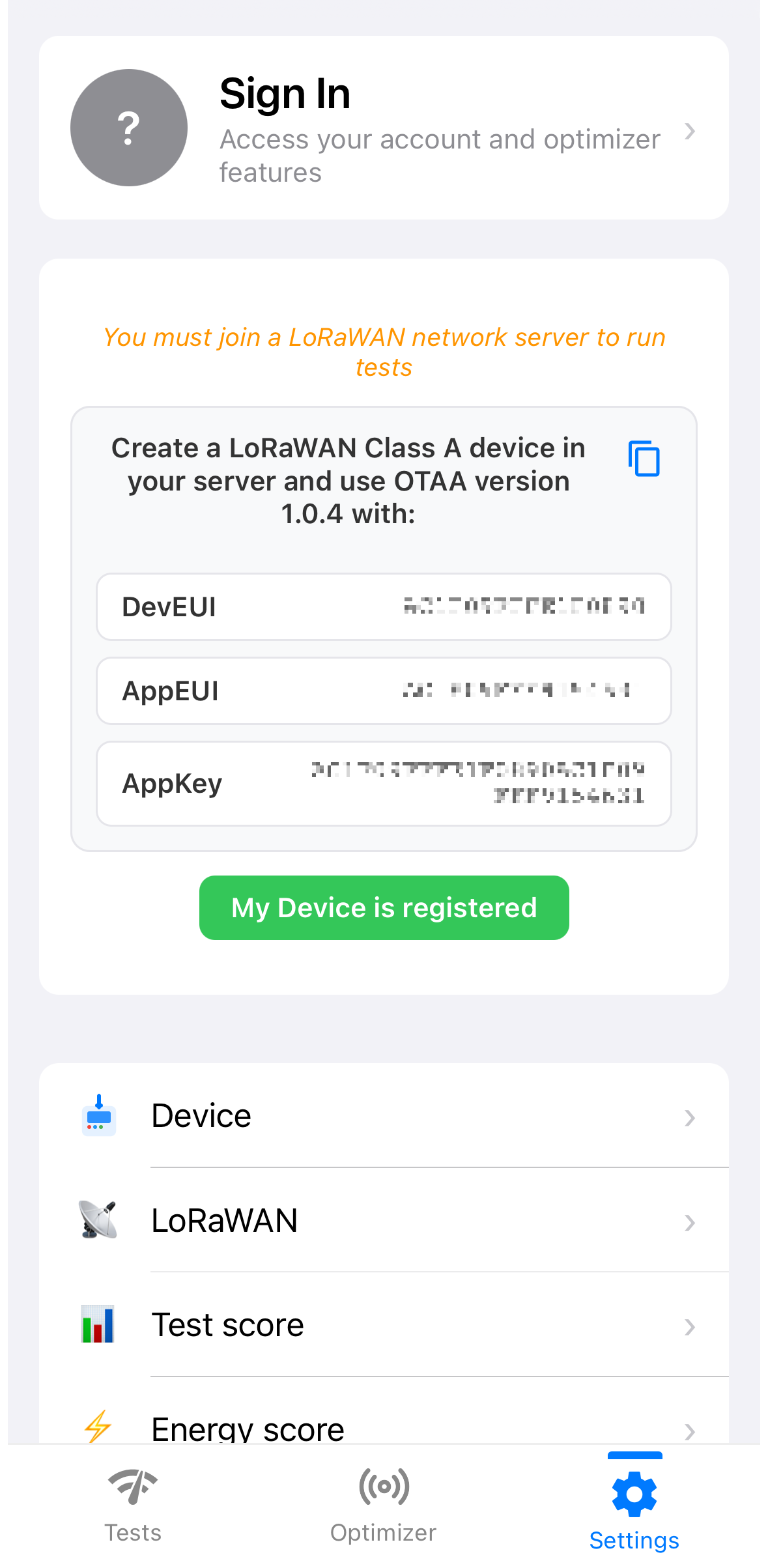
Create a LoRaWAN Class A device on your network server using OTAA and LoRaWAN version 1.0.4. Copy the DevEUI, AppEUI and AppKey displayed in your app into the device registration. Use your own device credentials; the screenshot is an example. Once registration is complete, tap My Device is registered.
The LoRaWAN Join Status shows Waiting for answer while Loptimizer waits for the network response. Keep the Pocket Tester powered on and within gateway coverage. If it does not join, check the registered credentials and LoRaWAN region.
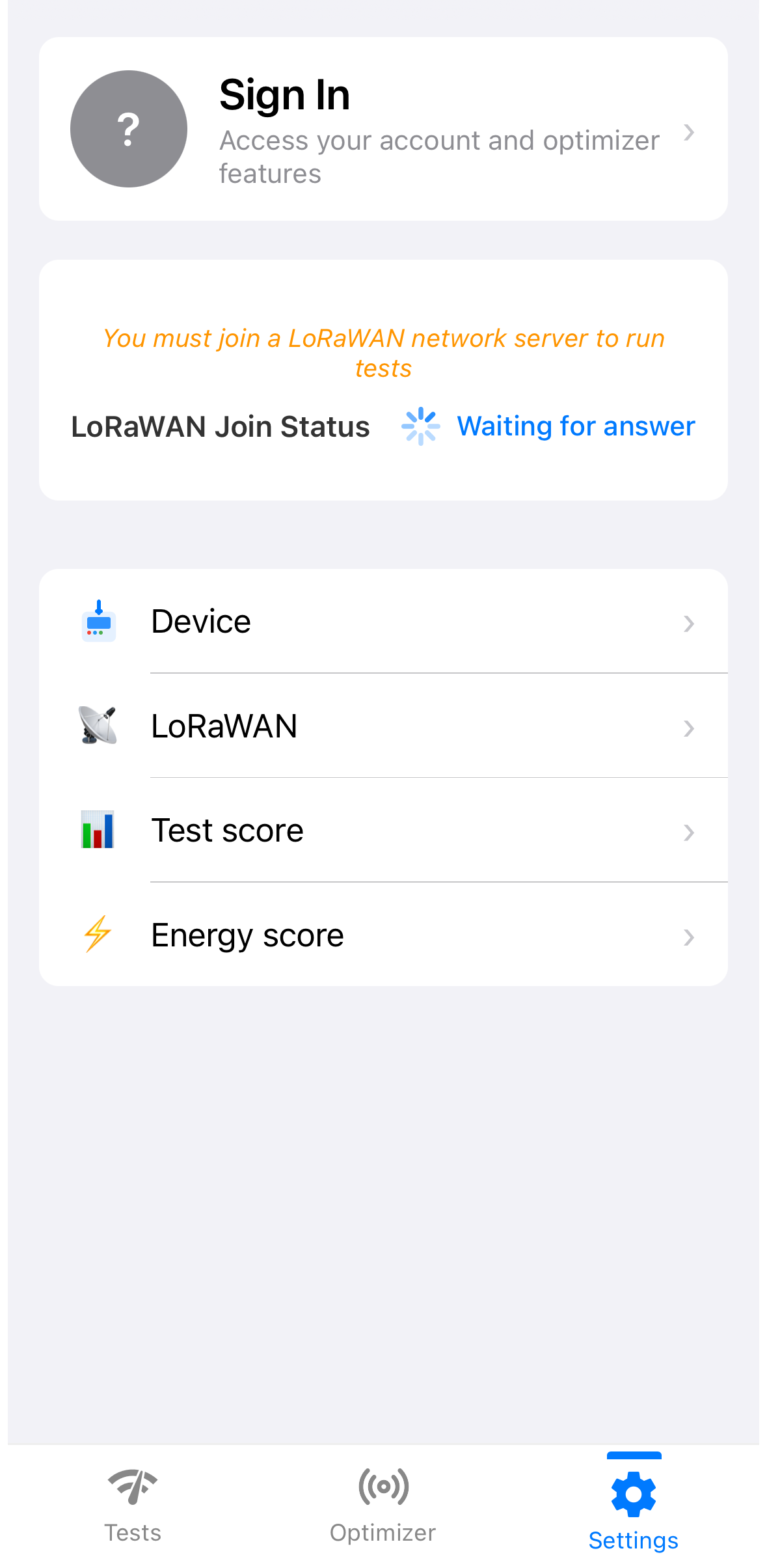
Wait until LoRaWAN Join Status displays JOINED in green. Your Loptimizer is now connected to the network and ready for your first LoRaWAN unit test.