Back to Documentation

Change the LoRaWAN region

The default LoRaWAN region is US915. Follow these steps to select the region for your deployment and, if needed, confirm it on the Pocket Tester.

1

Open the LoRaWAN settings

In the app, open Settings and tap LoRaWAN.
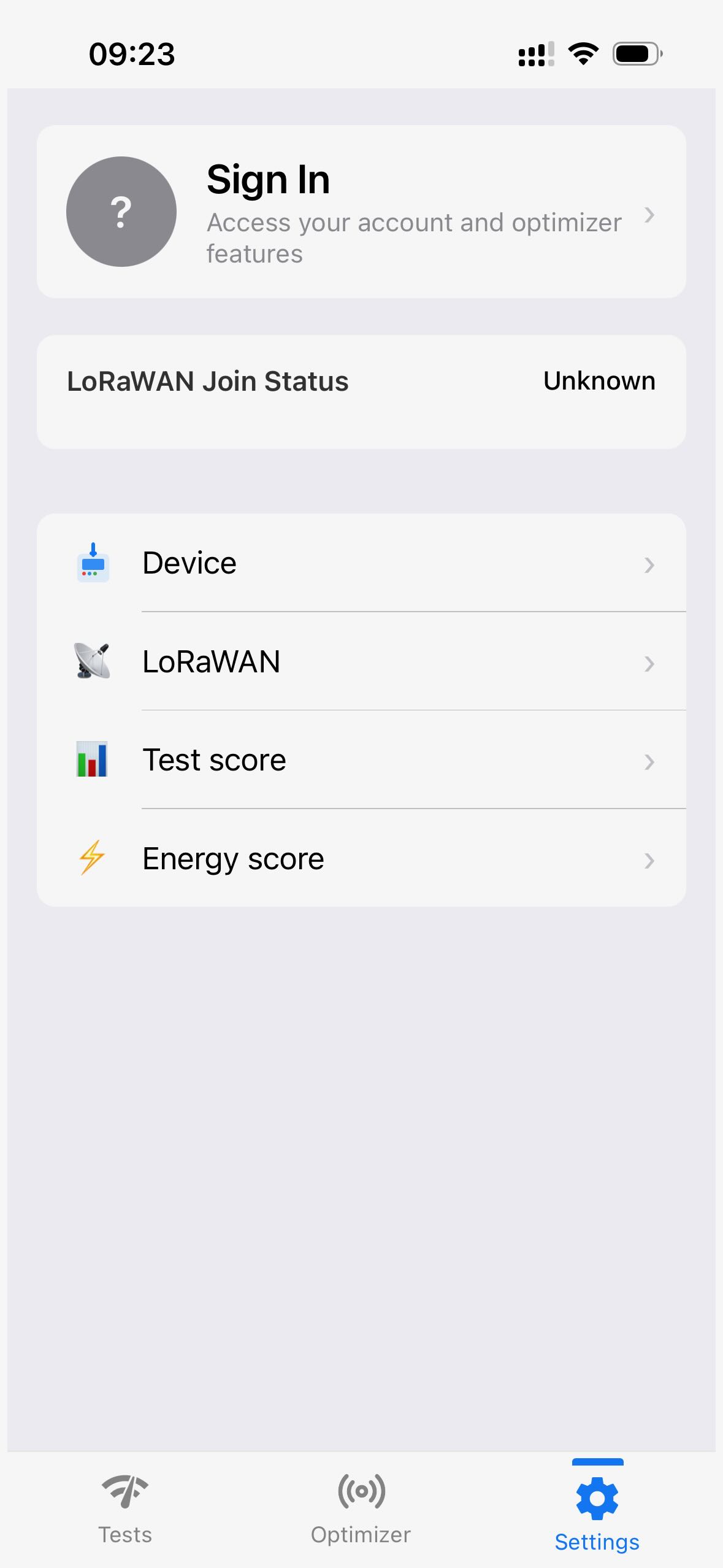
Loptimizer app Settings screen listing Device, LoRaWAN, Test score, and Energy score menu entries.
2

Select the correct region

Choose the LoRaWAN region that matches your deployment.
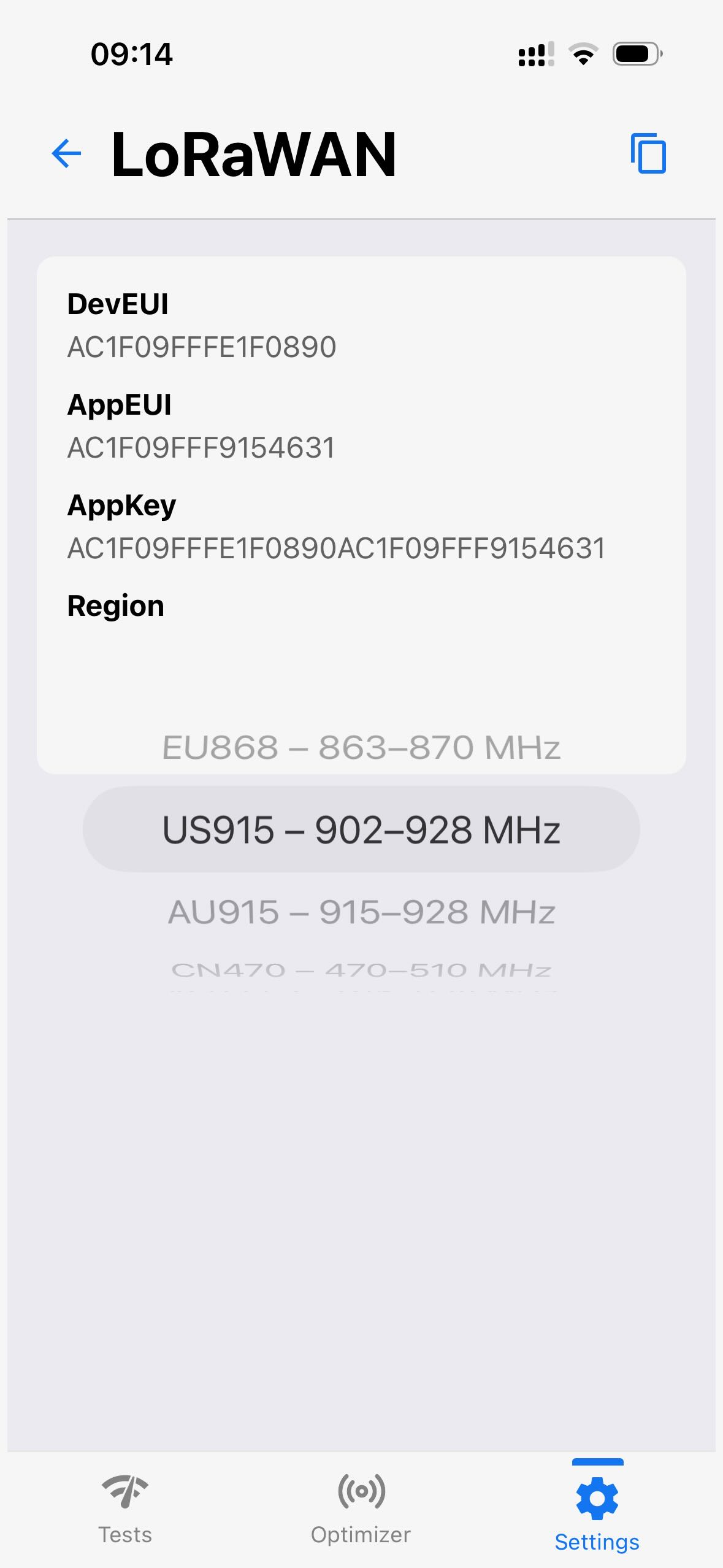
Loptimizer app LoRaWAN screen with DevEUI, AppEUI, and AppKey fields, and a Region picker set to US915.
3

Update the device configuration

Tap Update device configuration to apply the selected LoRaWAN region to the Pocket Tester.
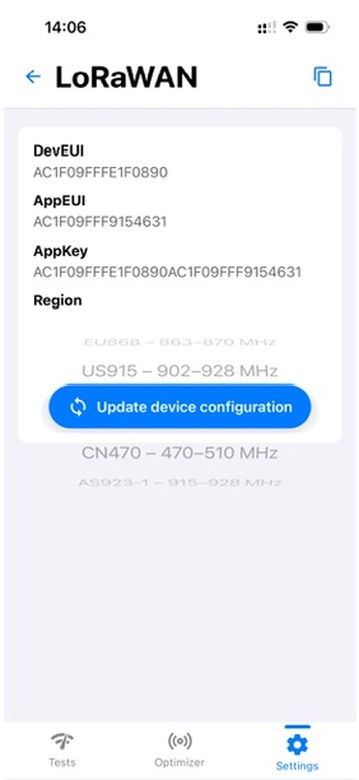
Loptimizer app LoRaWAN screen showing the Update device configuration button below the selected US915 region.
4

Confirm the region on the device (optional)

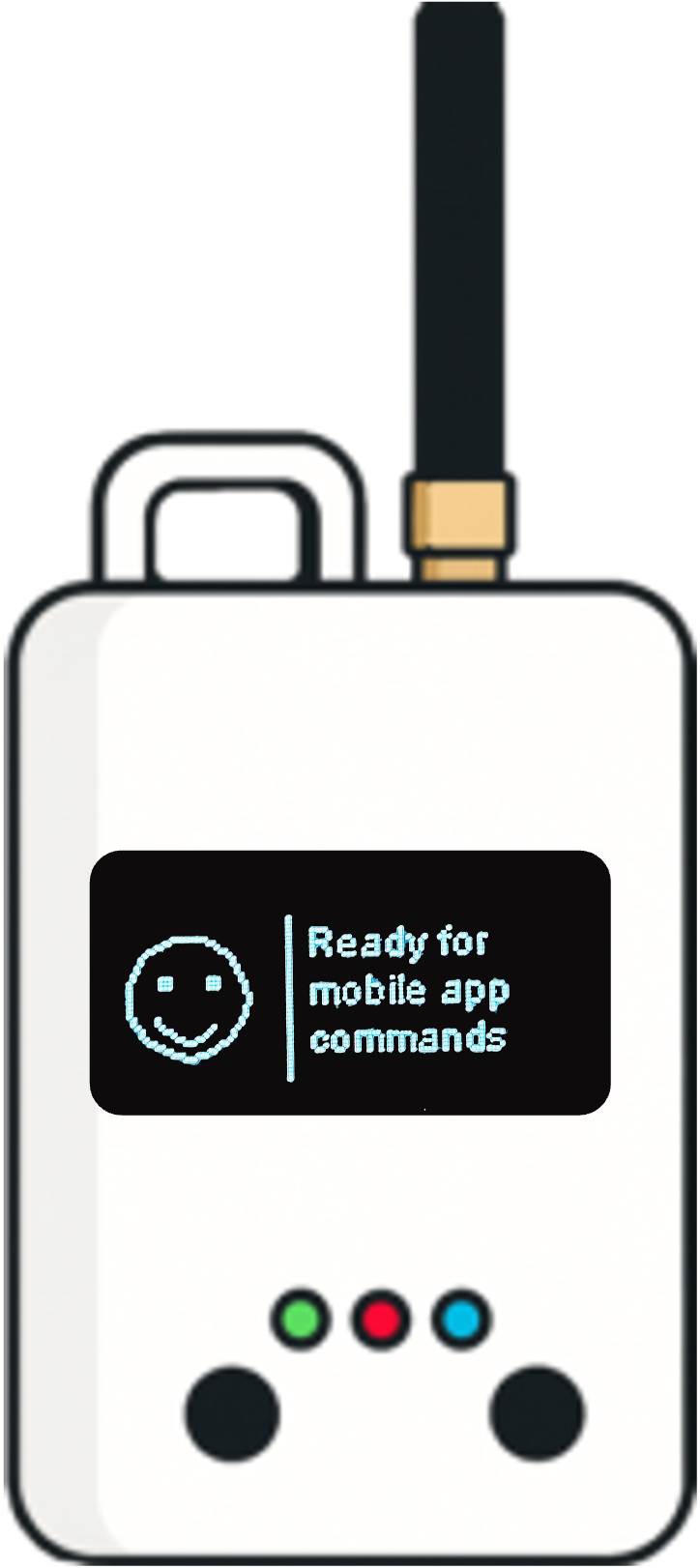
On the Pocket Tester, press the left button to cycle to the LoRaWAN status screen and confirm the selected region.
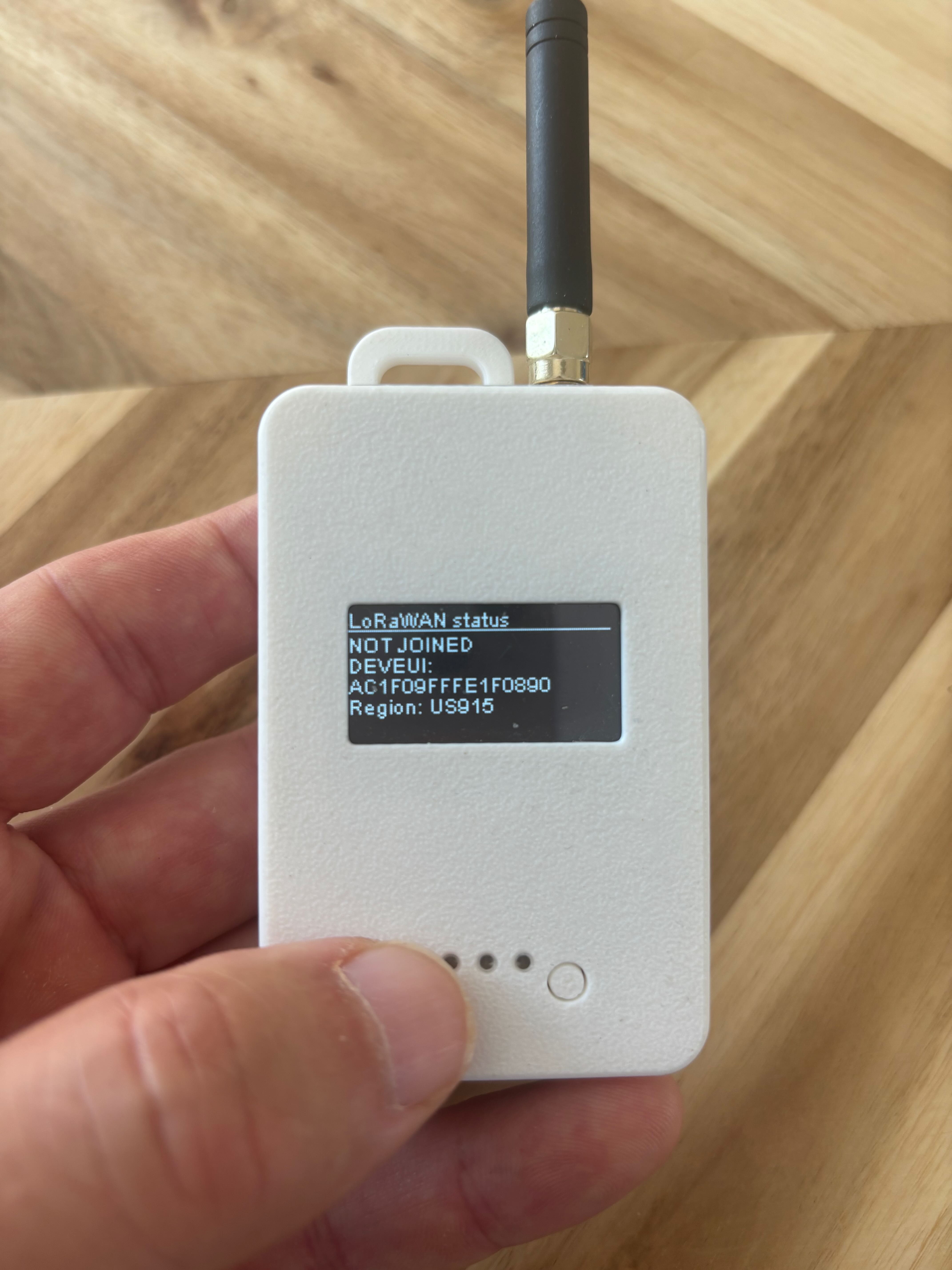
Loptimizer Pocket Tester device screen showing LoRaWAN status, DevEUI, and Region: US915.

Test Loptimizer before buying

You can test the Loptimizer mobile app for free. Install the app and open demo mode to explore the workflow before buying the hardware.

Buy Loptimizer from Pilot Things

Leave your contact information and country. The Pilot Things sales team will contact you to complete your Loptimizer order.

Contact support

Describe the issue and include the product DevEUI. The Pilot Things support team will follow up by email.